How School Web Filters Work
School web filters block sites by category: a vendor maintains lists of millions of domains tagged 'games', 'social', 'streaming' and so on, the school picks which categories to block, and the filter checks every request against the list — usually at the DNS or proxy level, and on managed Chromebooks through a browser policy as well. Sites slip through when they are new, uncategorised, or hosted on a platform (like Google Sites) the school can't block without breaking schoolwork.
Updated
It starts with a category list
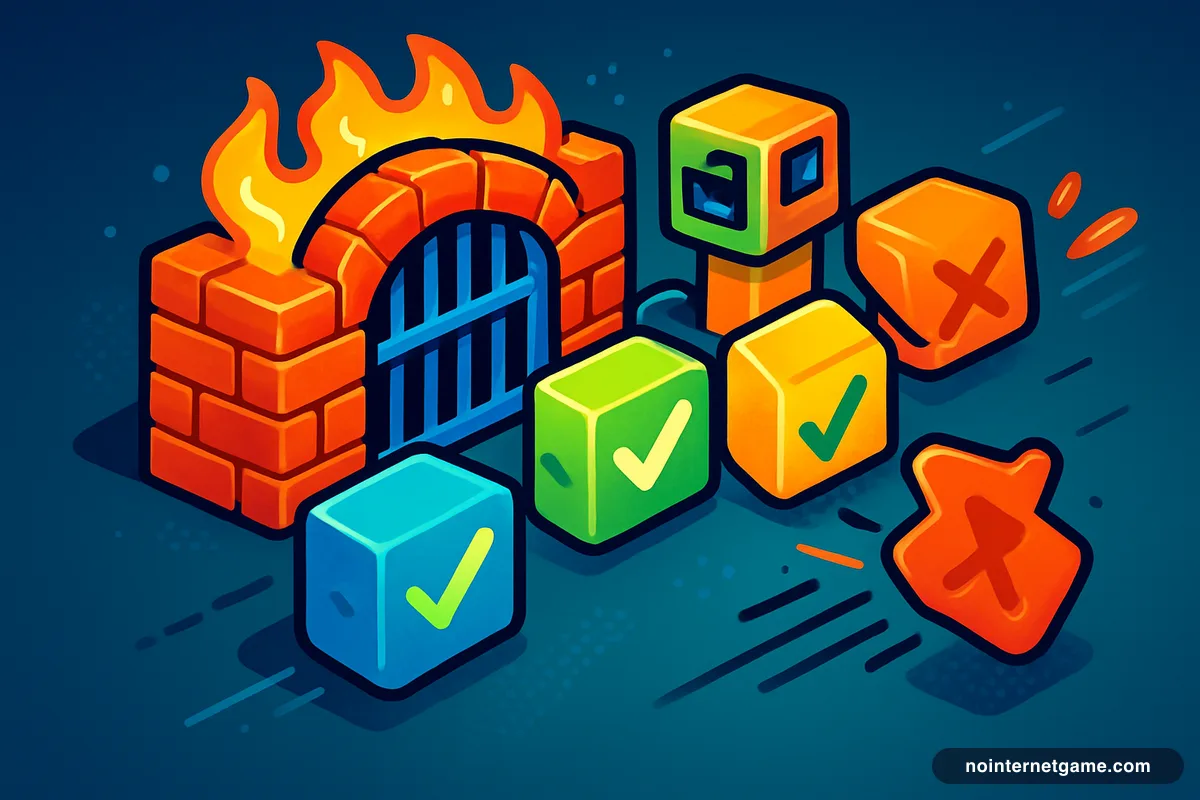
No IT department hand-picks the sites to block. They buy a filtering product — Lightspeed, GoGuardian, Securly, Linewize, Cisco Umbrella and a few others own the school market — and that vendor maintains a database of many millions of domains, each tagged with categories: Games, Social networking, Streaming, Proxy/VPN, Adult, and dozens more. The school ticks the categories it wants blocked. Every request from the network is checked against the database, and a domain tagged with a blocked category gets the block page instead of the site.
This is why blocking feels arbitrary from the inside. Two sites hosting the same game can be treated differently purely because of how — or whether — the vendor has tagged them.
Where the check happens
- DNS filtering — the most common. When your device asks "what is the address of example.com?", the school's DNS server answers with the block page instead. Fast, cheap, and it covers every device on the Wi-Fi.
- Proxy / gateway filtering — traffic passes through a school appliance that can inspect the domain (and, with a certificate installed on school devices, the full page). More precise, more expensive.
- Device policy — on managed Chromebooks, Chrome itself enforces a URL blocklist pushed from the Google Admin console, plus an extension like GoGuardian or Securly that reports and filters inside the browser. This layer follows the device home.
Most schools use two of the three. That is why a site can be blocked on a school Chromebook at home while working fine on your own phone on the same Wi-Fi: the phone only sees the network layer.
Why some sites slip through
- They're uncategorised. New domains have no tags yet. Until the vendor's crawler or a report classifies them, they are neither allowed nor blocked — they are simply unknown, and most filters allow unknown by default.
- They're on a platform that can't be blocked wholesale. sites.google.com, github.io, gitlab.io, Amazon S3 and CloudFront addresses host schoolwork, coursework and real software. A filter that blocks all of GitHub breaks the computer science class. So filters attempt page-level rules, which lag.
- They change names. A mirror that is well known enough to block is replaced by a copy under a new number. The numbered mirror sites are this cycle, visible.
What the filter can and can't see
- Domain you visited
- Yes — visible even over HTTPS
- Time and duration
- Yes
- Which page on the site
- Only with a school certificate installed (managed devices)
- What you did in the game
- No
- Tab titles / screen
- On managed Chromebooks with a monitoring extension, sometimes
- At home, on a school device
- Yes, the same rules apply
About getting around it
VPNs, proxy extensions and DNS changes are what filters are built to detect, and the Proxy/VPN category is blocked at nearly every school. More to the point, installing one on a school device is a policy violation with real consequences, while playing a game during a break usually is not. The sensible approach is on the unblocked games for school page: play what loads, when you're allowed, and don't install anything.
A special case: the dinosaur
The Chrome dinosaur game needs no website, so no web filter can touch it. Schools that want it gone use a separate Chrome policy — the story behind "the owner of this device turned off the dinosaur game" is on the blocked at school page.
Frequently asked questions
How do schools block games?
Almost always by category. The filtering vendor classifies domains, the school blocks the 'Games' category, and any domain tagged that way fails to load. Individual sites can be added or exempted by hand, but the bulk of blocking is the category list.
Why is one game site blocked and another isn't?
Because the second one hasn't been categorised as 'games' yet — it's new, small, or hosted on a platform whose main use is something else. Once the vendor classifies it, or a teacher reports it, it joins the list.
Why aren't Google Sites pages blocked at school?
Because sites.google.com hosts real classroom material — teacher pages, class portals, student projects. Blocking the whole domain would break schoolwork, so filters either allow it or attempt page-level blocking, which is slower to catch up. That gap is the entire reason the numbered 'unblocked games' mirrors exist.
Can the school see what I do on a game site?
It can see that you visited the site, when, and for how long — the domain is visible even over HTTPS. It cannot see what happened inside the page. On a managed Chromebook, extensions like GoGuardian can additionally see the tab's title and, in some configurations, the screen.
Does the filter work at home on a school Chromebook?
Usually yes. Managed Chromebooks enforce the filter through the device and account, not just the school Wi-Fi, so the same rules apply on any network.